Reminders on your iPhone, without a Mac
Two free Apple Shortcuts that put QuillReply's reminders into Apple Reminders on an iPhone or iPad. Nothing to install, no Apple ID, no iCloud password.
Do you actually need this?
Probably not. Most people should stop here and use one of the simpler options.
| Your situation | What to use |
|---|---|
| You have a Mac and want reminders in Apple Reminders | The Mac app. Install, pair, done. Reminders sync to your iPhone through iCloud like any other reminder, so your phone needs nothing at all. |
| You use Microsoft To Do, Todoist or Basecamp | Nothing. Connect it in settings and it works on every device you own. |
| No Mac, and you want Apple Reminders | This page. |
| You have a Mac but it is often closed | This page, alongside the Mac app. Whichever device checks in first files a given reminder; the other sees it appear. |
Where this genuinely earns its keep
- You work on a Windows PC or a Chromebook and carry an iPhone. The Mac app is not an option, and Apple Reminders is where your life already lives.
- You close the laptop at 5pm. A reminder you set on Tuesday for Saturday morning has to arrive on Saturday morning. If the only thing that files it is a Mac that spends the weekend shut, it will not.
- You travel light. The phone is the machine that is always on and always with you, which makes it the most reliable place to receive a reminder.
Why a Shortcut, and not an app
Apple gives websites no way to write to Reminders. Since iOS 13 that data has lived in a private store that only Apple's own app and code running on your device can reach, and the old CalDAV route no longer works.
That left three options. Ask for your iCloud password, which is a key that also opens Mail, Contacts and Calendar, and which we would then be storing for every customer. Ship an iPhone app, which is a real app with a real review cycle for a job that takes four actions. Or use Shortcuts, which Apple built precisely so that code you approve can do things on your device.
We chose Shortcuts, which is why QuillReply has never asked for an Apple ID and never will. The Shortcut holds one credential: a token that lets it read your reminder queue and nothing else. It cannot read your mail, because nothing in QuillReply can.
The two Shortcuts, and why there are two
You install both. They do different jobs and run on completely different schedules.
| Shortcut | What it does | How often |
|---|---|---|
| QuillReply Relay | Collects any reminders waiting for you and writes them into Apple Reminders. | Automatically, every hour. You set that up once, in step 4. |
| QuillReply Setup | Tells QuillReply the names of your Reminders lists, so the extension can offer them when you file something. | Once, and again only if you add or rename a list. |
They are separate on purpose. Reading your list names means letting a Shortcut look at your reminders, and iOS asks permission when it does, reasonably. That prompt is fine when you tap a setup step and are standing there to answer it. It is fatal on a scheduled automation running in your pocket, because there is nobody to tap "Allow", so the whole thing would quietly stall and your reminders would stop arriving.
So the scheduled one never looks at your reminders at all. It only writes.
Add the Shortcuts
Open these on the iPhone or iPad you want reminders to appear on.
Setting it up
- Get your token. In QuillReply's settings in your browser, scroll to Optional Shortcut for Apple Reminders and tap Generate a token for this device. Copy it. It is shown once, so get it somewhere you can paste from on your phone. A message to yourself works.
-
Add both Shortcuts. Tap the two buttons above on your phone. Each one asks you to paste the token as it installs. Same token in both. When you are done, they look like this in your library:
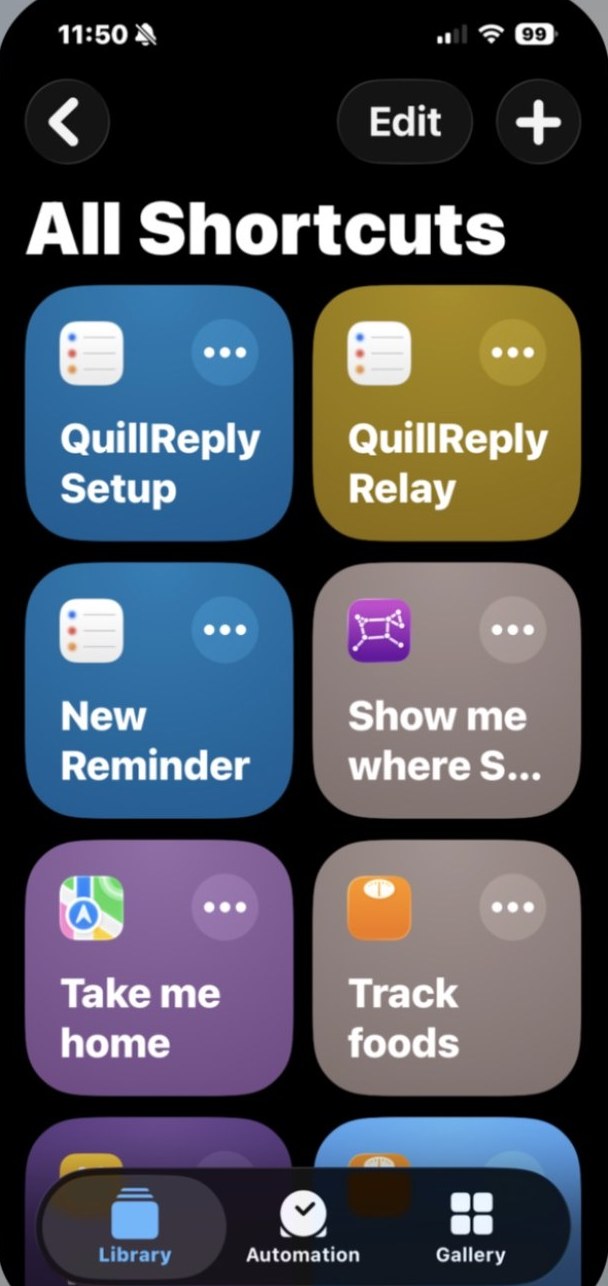
Both installed: QuillReply Setup and QuillReply Relay. - Run QuillReply Setup once. It asks permission to look at your reminders so it can read your list names. That is the prompt described above, and it is the only time you will see it. Tap Allow. Your list names now appear in the extension's list picker.
-
Schedule QuillReply Relay. This is the step that matters.
Without it, reminders only arrive when you open Shortcuts and tap the thing yourself, which nobody does. In the Shortcuts app:
- Tap Automation at the bottom, then +, then Time of Day.
- Pick a morning time, leave Repeat on Daily, and tap Next.
- Choose QuillReply Relay from the shortcut list. The automation is created the moment you tap it.
- One more tap, and it is the one people miss: open the automation you just made, change Run After Confirmation to Run Immediately, and leave Notify When Run off. That is what makes it silent and automatic; without it, iOS asks permission every single day.
- Now repeat this for a few more times of day. iOS only offers Daily, Weekly, or Monthly here, so several Daily automations stand in for "every few hours". Something like 8am, 11am, 2pm, 5pm, and 8pm covers a working day.
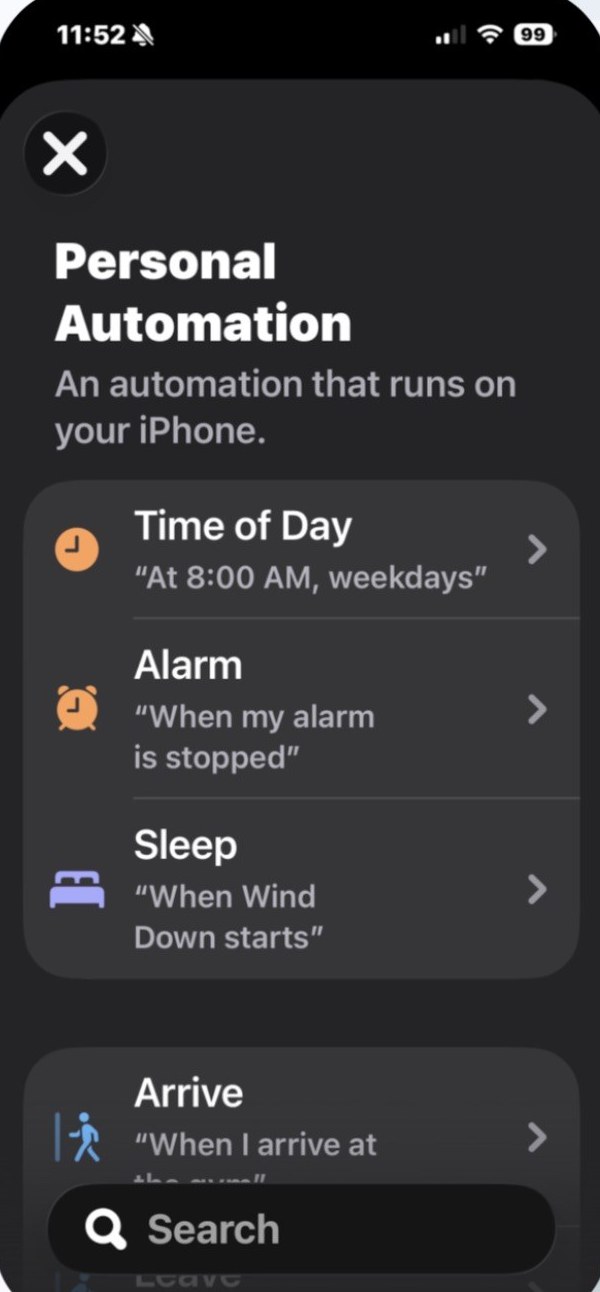
1. Automation → + → pick Time of Day. 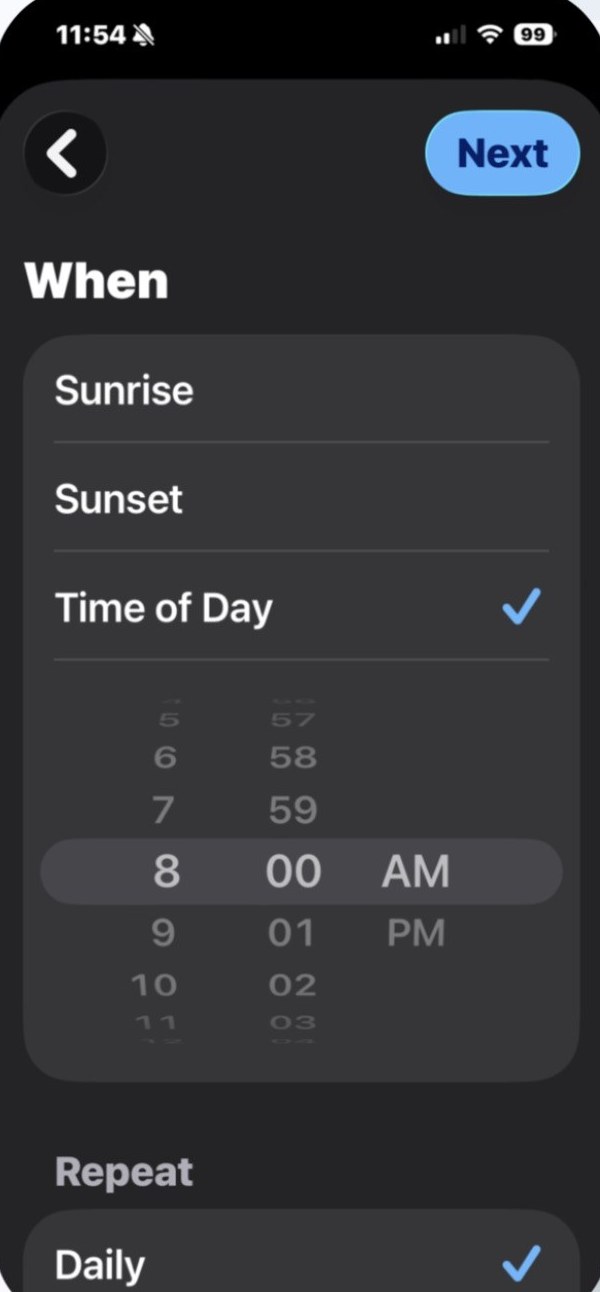
2. Set a time, leave Repeat on Daily, tap Next. 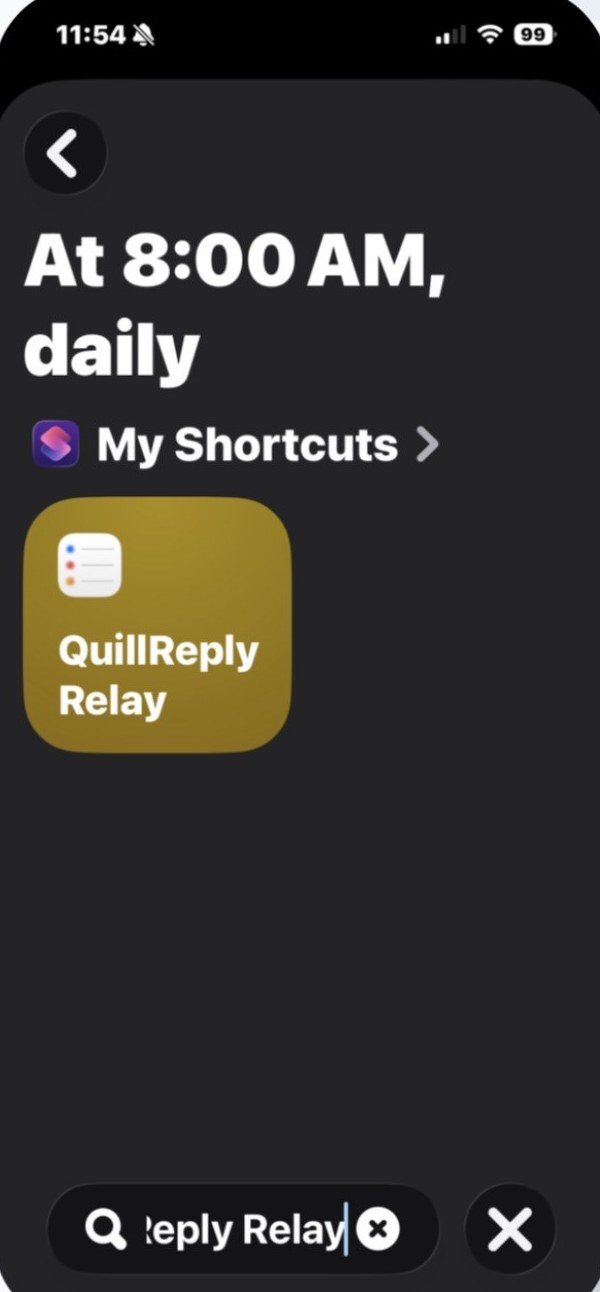
3. Tap QuillReply Relay. Done: the automation exists. 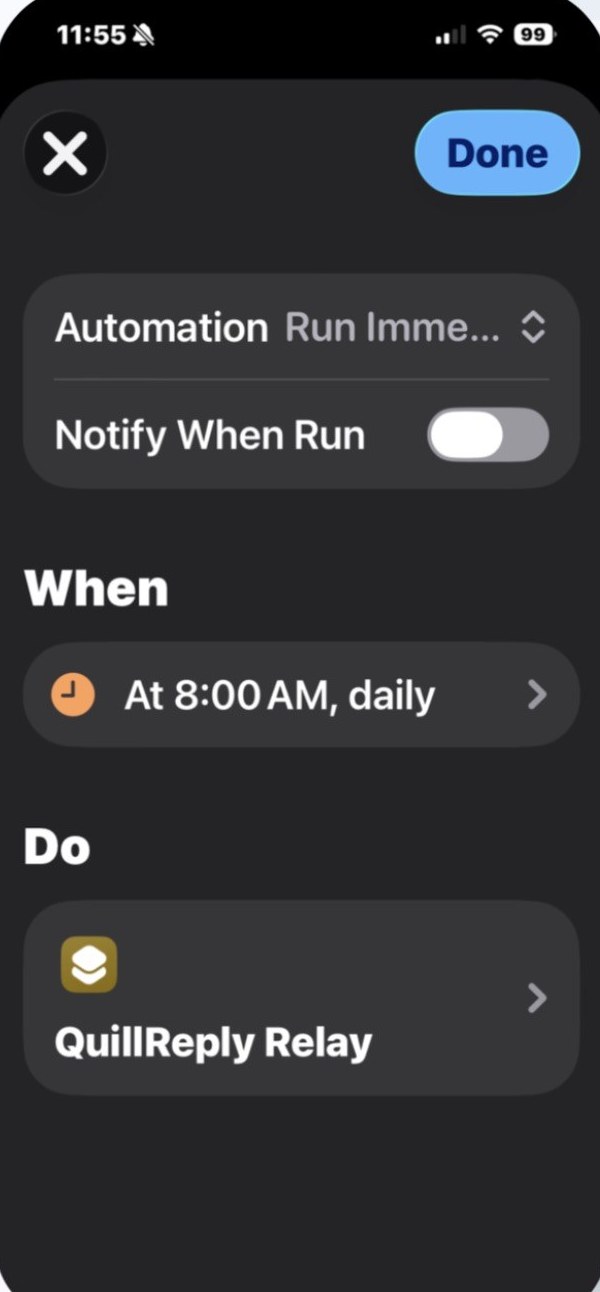
4. Open it and set Run Immediately. This is the finished state. - Check it. In Gmail, turn an email into a reminder with a date and time on it. At the next scheduled run it appears in Apple Reminders on your phone. To see it immediately, open Shortcuts and tap QuillReply Relay once.
Worth knowing
More automations, tighter timing
A reminder arrives at the next scheduled run after you file it, and its alarm goes off at the time you set, as long as the relay ran before then. Five automations across the day means a worst-case wait of a few hours; add more if you want tighter. There is no cost to running it more often; an empty check is one small request.
A list has to have something in it to be found
Setup reads your list names off your existing reminders, because Shortcuts has no way to simply ask "what lists do I have". A list with nothing in it is invisible to that, so it will not appear in the picker until it has at least one reminder. Add one and run Setup again.
Two devices are fine
Each device gets its own token, and both can run the relay. Whichever checks in first files a given reminder and the other sees it appear through iCloud. No duplicates, no configuration.
If reminders stop arriving
Open Shortcuts, tap Automation, and check the automation is still enabled. iOS sometimes turns them off after a restore or an iOS upgrade. Then tap QuillReply Relay by hand: if it fills in the missing reminders, the automation was the problem and not the queue.
What it can and cannot touch
| It does | It never |
|---|---|
|
Read the reminders waiting in your queue Write them into Apple Reminders on your device Report your list names, once, when you run Setup |
Ask for an Apple ID or iCloud password Read your email (nothing in QuillReply can) Read your existing reminders, on the scheduled run Send anything anywhere except QuillReply's own queue |
The token is a bearer credential scoped to one queue: yours. It cannot spend model credits, read your account, or reach anyone else's data. You can revoke every device at once from QuillReply's settings, and generating a new token for one device leaves the others working.